Tuesday, August 31, 2010

Preparing Photos for the Web with Conditional Actions

Kick your actions up a notch by adding conditions. This action uses conditional logic to automatically resize photographs to a uniform height and to optimize photos and related text graphics in different formats for display on the Web.

1.
Open a Photo and a Text Graphic

You can make actions more useful by including logic that triggers a step only if a certain condition is met. In this project you'll create an action that identifies photos that are taller than a certain size and resizes them so you have a uniform collection of vertical and horizontal photos to display on a Web page. The action also distinguishes between photographs and related text graphics (like Web page headers or photo captions), and optimizes the former as JPEGs and the latter as GIFs.

Start by opening a vertical photo and a related text graphic in ImageReady. You'll use these files to set up the action. Later you'll apply the action to a batch of photos using a droplet. Conditional logic is an ImageReady-only feature, so this project takes place in ImageReady.


INSIGHT

Conditional Actions Simplified. You don't have to be a programmer to understand and use conditional actions in ImageReady. A conditional action is just like a regular action except that it only takes place if a particular condition is met. ImageReady accomplishes this by applying simple conditional logic: if X is true then do Y. The conditional commands are easy to apply because they're simplified and built into one dialog box, as you'll see in this project.


TIP

Font Warning. When you open this text file, you may get a warning about substituting fonts. Allow the font substitution and change the font later if you have one that looks better to you.
2.
Create a New Action

Select the photo, and open the Actions palette (Window>Actions). Click the Create New Action icon at the bottom of the ImageReady Actions palette A. In the New Action dialog box, name the action Photo Prep and click Record B. The red button at the bottom of the Actions palette means the action is recording C.

TIP

No Action Sets in ImageReady. Actions made in ImageReady, unlike those in Photoshop, are not arranged in action sets.
3.
Choose Resizing Options

The first step you'll record comes with a built-in condition. This step tells ImageReady to resize every image on which the action is run to a height of 300 pixels, but only if the image is taller than 300 pixels to begin with.

Choose Image>Image size to open the Image Size dialog box, and set the options in the dialog box in this order.
  • Constrain Proportions: Checked A. (to maintain the proportionality of the resized photos)
  • Quality: Bicubic Sharper B. (see sidebar)
  • Action Options: Checked C. (to turn on the following options that are designed for batch processing)
  • Fit Image By: Height D. (to make the reduced photographs the same height. The width of each resized photo will vary based on the proportions of the original.)
  • Do Not Enlarge: Checked E. (to ensure that no image will be upsampled, which protects the quality of your photos.)
  • Height: 300 pixels F. (to set the height to which each image taller than 300 pixels will be resized. Width changes automatically and will be different than the 200 pixels you see here for photos that are different proportions than this one.)

INSIGHT

Bicubic Sharper Interpolation. This is the interpolation method the program will use to downsample (reduce the number of pixels in) the resized images. The Bicubic Sharper method is designed to be used when you're reducing image size. It keeps images relatively sharp so that further sharpening with the Unsharp Mask filter is often unnecessary.

Complete the Resize Step

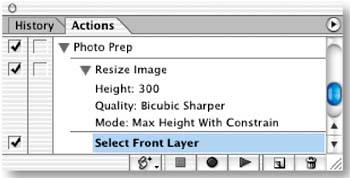
Click OK to close the Image Size dialog box and resize the open photograph to a height of 300 pixels. There's now a Resize Image step in the Photo Prep action. Click the arrow to the left of the step to see its parameters.
Select the Top Layer

Now you'll begin building steps that optimize text graphics as GIFs and photographs as JPEGs. You'll add a command to make sure the action selects the top layer of every file, because the text graphics on which you'll be running this action contain type on their top layers and pixel-based graphics on their other layers.
Click on the open text graphic. Press Shift+Option/Alt-] (the right bracket key on your keyboard). This is the shortcut for selecting the top layer in a file. You'll see a new step in the action labeled Select Front Layer.


TIP

Use Generic Commands. When you're building an action to run on multiple files, use generic commands, rather than commands tied to one file. This will make the action more flexible, so that it will run successfully on many different files. For example, in this step, we used the generic command for moving to a top layer, instead of clicking on the top layer in the open file, which would have inserted a specific layer name in the action and limited its applicability to other files.
6.
Insert a Conditional Statement

In this step you'll insert a conditional statement to ensure that your text graphics are optimized as GIFs. Click the Insert Step icon at the bottom of the Actions palette A and choose Insert Conditional from the pop-up menu. In the Conditional dialog box, choose the following settings and then click OK:
  • Choose Layer Type from the top pop-up menu B;
  • Choose the button labeled is C;
  • Choose Text from the second pop-up menu D;
  • Choose Include from the third pop-up menu E.
  • Type 1 in the field at the bottom of the dialog box F.

INSIGHT

Interpreting the Statement. In this project step you inserted a conditional statement based on if/then logic. The statement tells ImageReady that if a particular condition is met (if the selected layer is a text layer) then the action should include the next step (which will be to optimize the image as a GIF). If that condition is not met, the action will skip that next step.
7.
Choose GIF Optimization Settings

Click the Stop button at the bottom of the Actions palette A to stop recording the action. Otherwise, every change you make to the optimization settings will be recorded as a separate step in the action, which is unnecessary.
Click the Optimized tab in the document window, and open the Optimize palette (Window>Optimize). Choose the following optimization settings for this image in the Optimize palette—Format: GIF, Reduction: Selective, Colors: 16, Dither: No Dither, Lossy: 10; Add Metadata, unchecked B. Leave the other settings at their defaults.
Insert a GIF Optimization Step

With record still off, click the Insert Step button at the bottom of the Actions palette A and choose Insert Set Optimization Settings to GIF89A (a fancy name for GIF). This adds a step to the action that contains the GIF optimization settings you chose in the last step B.
 
Add Another Condition

Now you'll insert a conditional statement that ensures your photographs will be optimized as JPEGs. Leave record off. (It doesn't have to be on when you use the Insert Step commands). Click the Insert Step icon A and choose Insert Conditional from the pop-up menu. In the Conditional dialog box, choose the following settings and click OK:
  • Choose Layer Type from the top pop-up menu B;
  • Choose the button labeled is not C;
  • Choose Text from the second pop-up menu D;
  • Choose Include from the third pop-up menu E.
  • Type 1 in the field at the bottom of the dialog box F.
     

INSIGHT

Interpreting this Statement. This conditional statement is similar to the one on the preceding page. It tells ImageReady that if the selected layer is not a text layer then the action should include the next step (which will be to optimize the image as a JPEG). The combination of these two conditional actions will cause each image on which the action is played to be optimized to the appropriate Web file format.
10.
Choose JPEG Settings

Click on the Optimized tab in the document window of the open photograph A. With record still off, choose the following optimization settings in the Optimize palette B —Format: JPEG, Quality: Medium. Leave the other settings at their defaults.
 

Insert a JPEG Optimization Step

With record still off, click the Insert Step button at the bottom of the Actions palette A and choose Insert Set Optimization Settings to JPEG. This adds a step to the action that contains the JPEG optimization settings you chose in the last step B.
Test the Action on Individual Files

Choose File>Revert to return the open photograph to its original, larger state. Click the Play button on the bottom of the Actions palette A. The photograph should become smaller. Click the Information box at the bottom of the photograph's document window and choose Optimized Information. The Information box should indicate that the image is now a JPEG B. Repeat this step on the open text graphic. The text graphic should stay the same size (because it was shorter than 300 pixels to start with) and become a GIF C. If all went as expected, move to the next step.
 

TIP

Information Box. ImageReady offers two identical Information boxes at the bottom of every document window. (You only see one in the open photograph because its window is narrow.) The Information menus contain lots of valuable information about an image. Explore them when you get a chance.

If the action doesn't work as expected, troubleshoot by selecting each step in the action one-by-one, clicking the side arrow on the Actions palette D, and choosing Play [name of step]. If you find a faulty step, double-click it to try to open its command, where you can fix the settings. Or drag the step to the Trash icon in the Actions palette and re-record. If all else fails, start all over.
13.
Insert Output Folder

Click the Insert Step icon at the bottom of the Actions palette and choose Insert Set Output Folder A. In the dialog box that opens, click New Folder to make an output folder for the files generated by this action and click Choose. Be aware that if you move your output folder, the action won't be able to find it. In that case, create a new output folder as explained in the tip.

Create a Droplet

The real advantage of recording a conditional action is that you can use it to process a whole folder of images. Select the Photo Prep action in the Actions palette A. Click the palette's side arrow B and choose Create Droplet. Navigate to your desktop and click Save. The named droplet icon C will appear on your desktop.

TIP

Changing the Output Folder. You can change the output folder any time by double-clicking the droplet icon on your hard drive to open a list of the droplet's steps. Double-click the Set Output Folder step. In the dialog box that opens, create a new output folder and click Choose. Close the droplet list and click Save. The new output location is saved as part of the droplet.


Process a Folder of Photographs

Now comes the best part! Drag the C03_03_images project files folder onto the Photo Prep droplet on your desktop A. Then sit back while ImageReady runs the action on all the files in the folder. Check the results by opening your output folder B. It will be filled with vertical and horizontal photographs optimized as JPEGs and resized to 300 pixels high, along with the two text graphics files optimized as GIFs. These files are all ready to be brought into a Web site–building program. Try running this droplet on your own images to save processing time.
In this tutorial:
  1. Automation
  2. Batch Processing Photo Thumbnails
  3. Making the Most of Actions
  4. Making Multiple Web Graphics
  5. Demystifying Droplets
  6. Preparing Photos for Web with Conditional Actions
  7. Design Multiple Pages in a Single File
  8. Linking HTML Pages from Layer Comps
  9. Outputting Multiple Linked Web Pages
  10. Creating Dynamic Flash Web Banners
  11. Creating and Importing External Data Sets

Monday, August 30, 2010

Demystifying Droplets

Droplets are mini-applications you can create from ImageReady or Photoshop and apply to a single file or use to batch process a collection of files. Here are some tips for understanding and using droplets.
Optimization Droplets
The simplest droplet is one created from the Optimize palette in ImageReady. This kind of droplet contains only optimization settings and is used to optimize one or more files by applying the same optimization settings, as you did in the second project in this chapter, Making Multiple Web Graphics.
To create a droplet from ImageReady's Optimize palette, drag the droplet icon from that palette onto your desktop. Alternatively, click the droplet icon in the Optimize palette and choose a droplet name and location, or click the side arrow on the Optimize palette and choose Create Droplet.

Action Droplets

The other kind of droplet is one created from an action in either Photoshop or ImageReady. This kind of droplet can contain any action you create in the corresponding program. It is used to batch process multiple files with that action. In ImageReady, a droplet is the only way to batch process an action. In Photoshop, you can batch process an action either by dragging a folder of files onto a droplet or by using the Automate>Batch Process command from the File menu at the top of the screen or from the File menu in the File Browser, as you did in the first project in this chapter, Batch Processing Photo Thumbnails.
To create a droplet from an action in ImageReady, click the side arrow on ImageReady's Actions palette and choose Create Droplet. To create a droplet from an action in Photoshop, choose File>Automate>Create Droplet and specify the action set and action in the Create Droplet dialog box that opens.

Including a Droplet in an Action

When you create an action in ImageReady, you can specify optimization settings to be applied along with the other steps in the action by choosing optimization settings in the Optimize palette and then dragging the droplet icon from the Optimize palette into the action in the Actions palette. Set Optimization To [the format you chose in the Optimize palette] will appear as a step in the action, just above the selected step. Note that you cannot drag a droplet from your hard drive into the Actions palette.
Cross-Platform Droplets

Droplets can be used across Windows and Macintosh platforms. To use a Photoshop droplet created in Windows on a Mac, drag the droplet onto the Photoshop icon in your OS X dock (or drag an ImageReady droplet onto the ImageReady icon in your dock).
To use a droplet created on a Mac in Windows, change the extension on the droplet file name to .exe, because it is an executable mini-program.
Applying a Droplet to a Slice
In ImageReady, a droplet containing optimization settings can be applied to optimize an entire image, or alternatively to optimize selected slices in an image. To apply an optimization droplet to a slice, choose settings in ImageReady's Optimize palette, and then drag the Droplet icon from the Optimize palette onto the slice in the document window. You cannot drag a droplet from your hard drive onto a slice.
Editing a Droplet
In ImageReady you can edit a droplet directly. Double-click an ImageReady droplet to open the droplet window. That window contains a list of all the steps in the action. In the droplet window, you can delete a step by dragging it to the Trash icon at the bottom of the window, or you can click and drag steps to rearrange them. In Photoshop you edit the underlying action and create a new droplet.
Droplet Batch Options
In ImageReady, you can set options for how a droplet will be applied to a batch of files by double-clicking the droplet to open the droplet window, and then double-clicking Batch Options at the top of the droplet window. This opens the Batch Options dialog box. In that dialog box you can choose whether to save original files in addition to optimized files, and where to save the optimized files. You can specify how to name any duplicate files to avoid overwriting files, and you can instruct ImageReady to create file names that are appropriate for various operating systems. Among the Playback settings are options to display images while they are being processed and to pause before saving each image. In Photoshop, batch processing options are located in the Create Droplet dialog box and are the same as the batch options covered in the Batch Processing Photo Thumbnails project earlier in this tutorial. 
In this tutorial:
  1. Automation
  2. Batch Processing Photo Thumbnails
  3. Making the Most of Actions
  4. Making Multiple Web Graphics
  5. Demystifying Droplets
  6. Preparing Photos for Web with Conditional Actions
  7. Design Multiple Pages in a Single File
  8. Linking HTML Pages from Layer Comps
  9. Outputting Multiple Linked Web Pages
  10. Creating Dynamic Flash Web Banners
  11. Creating and Importing External Data Sets

Making Multiple Web Graphics


This project uses two timesaving automation techniques. Break a file into individual graphics with Photoshop's Crop and Straighten Photos command. Then optimize those graphics all at once as Web-ready GIFs using an ImageReady droplet.


1.
Prepare a Single Image

Open a file in Photoshop that has several graphics on a single layer. In the steps that follow you'll automatically separate these graphics into individual files and optimize them all as GIFs.

Start by changing the single Background layer into a regular layer so you can make some of its pixels transparent. Double-click the Background layer A, and click OK in the New Layer dialog box to convert this layer to a regular layer. Select the Magic Wand tool in the toolbox. Control/right-click the tool icon at the far left of the Options bar and choose Reset Tool B to return the tool to its default settings. Click on the white background to select everything except the graphics C, and press Command/Ctrl-X to delete the selected area. The checkerboard represents transparency D. Press Command/Ctrl-D to deselect.


TIP

Background Layer Restrictions.

A Background layer cannot have transparent pixels. Erasing on a Background layer displays the Background color from the toolbox. You can't move the layer's content or drag another layer beneath it. So you'll often want to change a Background layer to a regular layer.
2.
Crop the Image Automatically

Next you'll separate the graphics in this image into individual files. You could do this with the slice tool. But there's a faster way. You'll use Photoshop's Crop and Straighten Photos command, which was designed to allow photos to be scanned together and then quickly separated and straightened. This feature works just as well on graphics like these that were created in a drawing program on a single layer. Choose File>Automate>Crop and Straighten Photos from Photoshop's menu bar. Wait just a second, and you'll have five separate images, each closely cropped to one of the graphics.

Close the original image without saving. Save each of the individual graphics into one destination folder. Leave Format/Save as Type set to TIFF, and click OK in the TIFF Options dialog box to accept its defaults. Close all but one of the individual images, which you'll use to create an optimization droplet.


TIP

Clean Up the Crop. Sometimes the Crop and Straighten Photos command doesn't do a perfect job of cropping the individual images it produces. Try using the Crop tool or other editing tools on the individual images to tidy up the edges of the files.
3.
Jump to ImageReady

With one of the individual graphics open, click the Edit in ImageReady button at the bottom of the Photoshop toolbox. That image opens in ImageReady, ready for further editing there.


Set Up an Optimizing Workspace

In ImageReady, click the 2-Up tab in the document window to see and compare the original graphic and a preview of the optimized graphic A. Open the Optimize palette (Window>Optimize). Click the double-pointed arrow on the Optimize tab to see all the palette's settings B. Click the Color Table icon on the Optimize palette C to open the Color Table palette D.


Optimize the Graphic as a GIF

Click in the preview pane of the document window A and choose the following settings in the Optimize palette B.

  • Format: GIF
  • Reduction: Selective
  • Colors: 32 (This setting has the most impact on file size and appearance. These colors are visible in the Color Table palette C)
  • Dither Method: No Dither
  • Transparency: Checked (to maintain the transparent background pixels)
  • Matte: None (This creates a hard-edged graphic with no halo; but if you know the color of the page background on which you plan to place these graphics, choose that color)
  • Lossy: 10 (to further reduce file size)
  • Add Metadata: Unchecked (to avoid inflating file size)

The resulting GIF looks like the original image and is small in file size.
6.
Create a Droplet

Creating a droplet is as easy as clicking the Droplet icon on the Optimize palette A and dragging to your desktop. The droplet appears on your desktop automatically named with the optimization settings B.


INSIGHT

What is a Droplet? A droplet is a small application that you can run on a single file or on a collection of files. A droplet generated from ImageReady's Optimize palette is used to optimize other files with the same settings. A droplet can also be created from ImageReady's or Photoshop's Actions palette and used to run that action on multiple files.
Alternatively, if you want the chance to choose the name or location of the droplet, click the side arrow on the Optimize palette and choose Create Droplet. In the Save Optimized Settings as Droplet dialog box, give the droplet a name and location, and click OK. Close the graphic without saving.
7.
Edit the Droplet

The droplet will save the optimized GIFs to the same folder as the original individual TIFF files by default. To save the optimized GIFs to a separate folder, double-click the droplet to open a droplet window A. In the droplet window, double-click Batch Options to open the Batch Options dialog box. In the Batch Options dialog box, leave Optimized checked, click the In button, and choose Specific Folder B. Then click the Choose button and navigate to a separate folder in which you want to save each of the optimized GIFs C.


It's a good idea to also save a copy of the original individual graphics, containing the optimization settings you added. If you need to make a change to the files in the future, these will be the files to use. ImageReady will save a copy of each as a PSD file in the same folder as the original TIFFs if you check Original (same name and folder) in the Batch Options dialog box) D. Click OK to close the Batch Options dialog box. Then close the droplet window and click Save at the prompt to save your batch processing changes along with the droplet.
8.
Apply the Droplet

Now you'll use the droplet to automatically optimize all the individual graphics you created earlier. Click and drag the folder that contains those graphics on top of the droplet on your desktop A. You can see the progress of the files as they process in the Batch Progress window B.


View the Results

Open the folder to which you saved the GIFs on your hard drive. You'll see five optimized GIFs ready to be brought into a Web-building program for inclusion on a Web page.
In this tutorial:
  1. Automation
  2. Batch Processing Photo Thumbnails
  3. Making the Most of Actions
  4. Making Multiple Web Graphics
  5. Demystifying Droplets
  6. Preparing Photos for Web with Conditional Actions
  7. Design Multiple Pages in a Single File
  8. Linking HTML Pages from Layer Comps
  9. Outputting Multiple Linked Web Pages
  10. Creating Dynamic Flash Web Banners
  11. Creating and Importing External Data Sets